
Go to Settings >> System >> Plugins.
Find Duo Security 5.0.0 and click Manage to open the Duo Security panel.
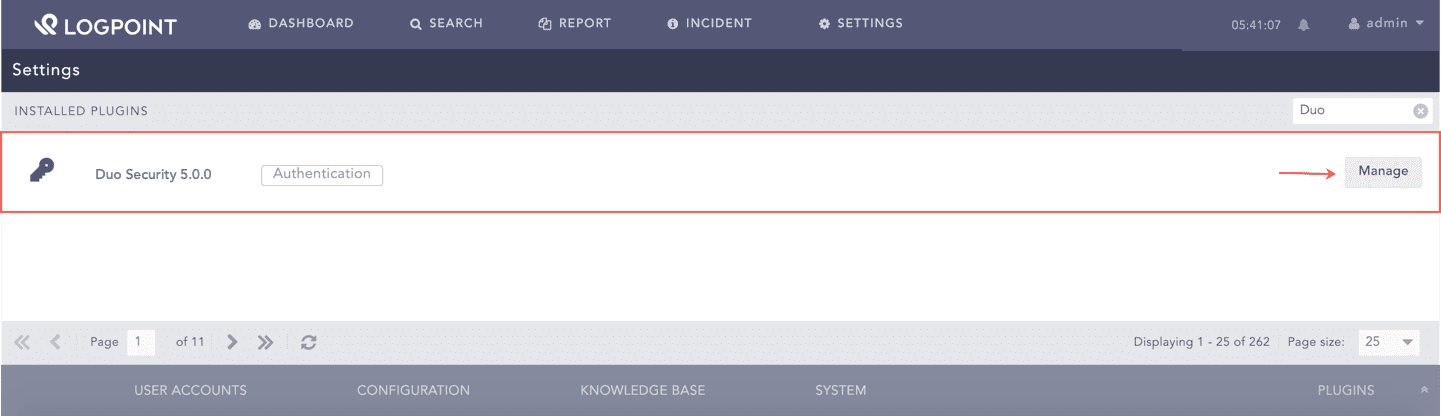
Managing the Duo Security Application
Enable the Configure Duo Security Settings option.
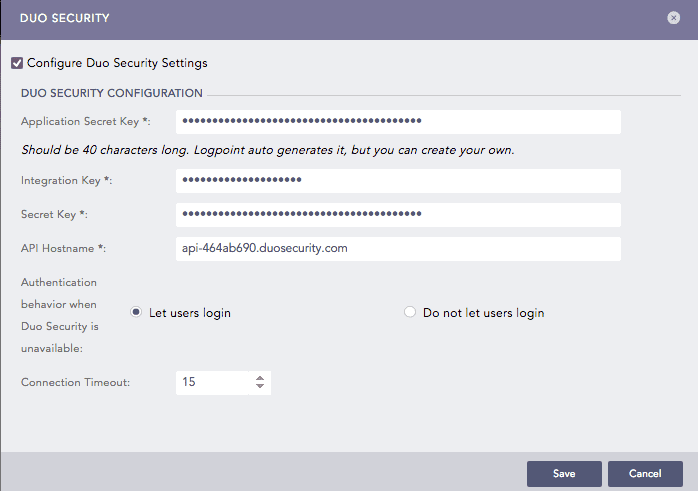
Duo Security Panel
Enter the Application Secret Key. LogPoint auto-generates the Application Secret Key. You can also create your custom key, which must be 40 characters long with a mixture of letters and numbers.
Enter the Integration Key, the Secret Key, and the API Hostname.
Note
Refer to the Appendix section to receive information on Integration Key, Secret Key, and API Hostname.
Select an Authentication behavior when Duo Security is unavailable.
7.1 Choose the Let users login option to allow login if the secondary authentication device is unavailable.
7.2 Choose the Do not let users login option to restrict login if the secondary authentication device is unavailable.
Enter the Connection Timeout (in seconds) that is the maximum time limit to complete the authentication.
Click Save.